
#1 What This State Means
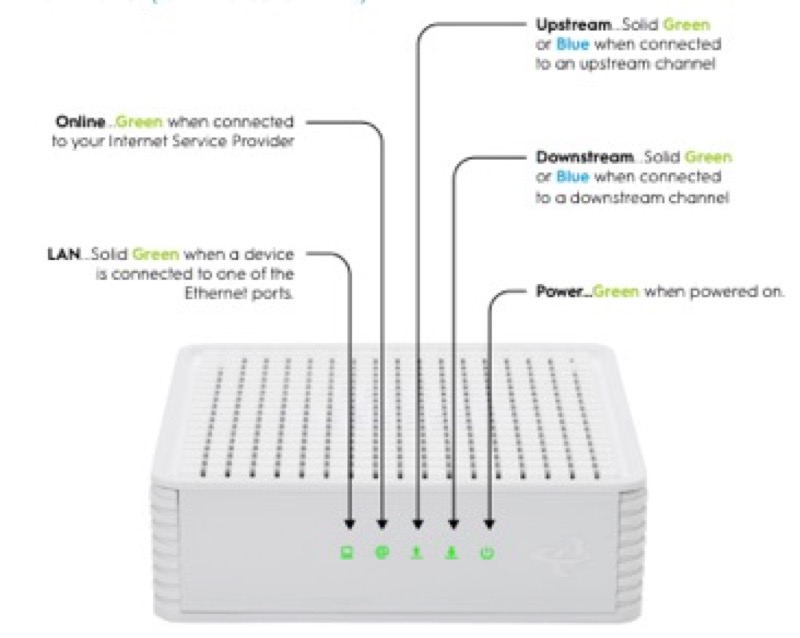
The Xfinity XB7 gateway, model CGM4331COM, uses the same status-light system as other Xfinity gateways. Xfinity’s official light table covers gateways as a group and does not publish a separate light chart for the XB7. So the meaning of each light on an XB7 is the meaning in that table: no light for a device that is off, white for operational or activating, red for no internet connection, blue for WPS pairing, and a group of other colours for connecting to Xfinity systems.
Xfinity’s gateway overview lists the XB7 among its models and gives its features, including that the XB7 and later gateways are the ones with a backup battery available for purchase. That is useful when you are checking a power problem, because a battery changes how a gateway behaves during an outage. It does not add light states to the table.
The practical rule for an XB7 is therefore the same as for any Xfinity gateway. Identify the light, match it to the table, and act on the single instruction for that state. Do not use an XB8 or other model’s light description unless the table says so, because the overview does not describe XB7-specific light patterns.
#2 Steps to Troubleshoot
- Confirm the model. Check the label on the gateway for CGM4331COM. If the label reads CGM4981COM, you have an XB8, and the XB8 guide applies.
- Identify the light. Note the colour and whether it is steady or blinking. The table treats steady and blinking white differently.
- Match it to the table. Blinking orange, green or yellow means the gateway is connecting to Xfinity systems, so wait about 15 minutes. Steady red means no internet connection, so contact Xfinity. Blue blinking means WPS pairing.
- Check power before anything else if there is no light. The table defines no light as the device being off. Check the adapter and outlet.
- Check the coax. Make sure the coax is tight at the wall and at the gateway.
- Check for an outage. Use the Xfinity app to look for service problems in your area.
- Restart once, then wait. Unplug the power, wait one minute and plug it back in. Allow the cycle to finish.
- Contact Xfinity if the light does not match the expected state. Give the model number, the colour and pattern, and what you have already checked.
#3 What If Scenarios
Q: Is the XB7 light the same as the XB8 light? The official table applies to both, so the colour meanings are the same. Model-specific behaviour is not described in the table, so do not rely on a light description from another model’s article for detail the table does not give.
Q: My XB7 has a battery backup. Does the battery change the lights? The overview says the XB7 and later gateways can have a backup battery bought separately. The official table does not describe how the lights behave on battery, so check the battery’s own instructions and contact Xfinity if the light behaves unexpectedly during an outage.
Q: The XB7 light is blinking white. Is that a problem? Blinking white on a gateway that is still activating is an expected state in the official table. If the gateway has been activated and the light keeps blinking white, follow the white-light guide and contact Xfinity.
Q: Will a factory reset fix an XB7 with a red light? The sources do not say so. A factory reset erases your Wi-Fi name, password and custom settings, and the table asks you to contact Xfinity for a red light, not to reset. Reset only if Xfinity support tells you to.
Q: Where can I find the XB7 user guide? Xfinity’s gateway user-guide page lists the guides by model. Use it to confirm the features of your gateway before you rely on any feature-specific instruction.
Q: Why does this guide keep pointing back to the official table? Because Xfinity has not published a separate light chart for the XB7, and the table is the only official source for gateway light states. A page that invented XB7-only colours would be guessing. Where the table is silent, the page says so and gives the safe next step rather than a model-specific claim.
#4 Related Articles
For the full state table, read the Xfinity gateway lights guide. For the XB8 gateway, read the Xfinity XB8 gateway lights guide. For the white and red states, read the Xfinity router blinking white guide and the Xfinity router red light guide.