
#1 What This State Means
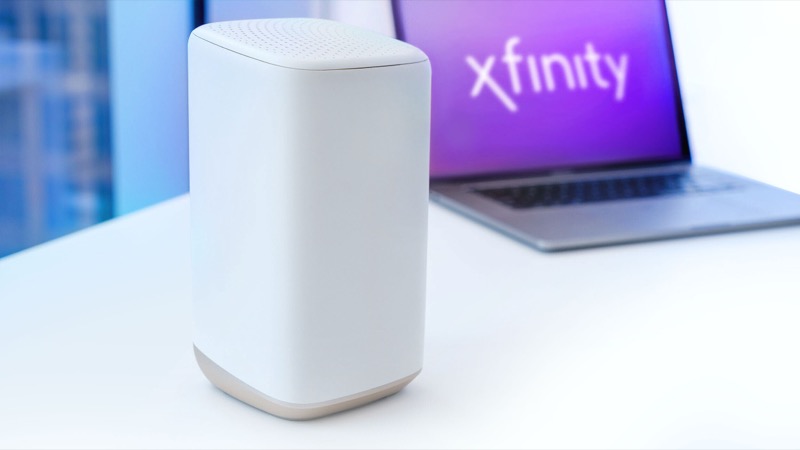
Xfinity’s official light table is short. It describes a single set of status lights on each gateway, and it lists the states it documents. Read it as a reference rather than a diagnosis: find the light you see, then take the one action the table gives for it.
| Light you see | Device status | What the table says to do |
|---|---|---|
| No light | Off | Nothing to fix on the light itself. Check the device has power. |
| White, steady | On and operational | No action. This is the healthy state. |
| White, steady or blinking, with a purple tint | Post-activation | Operational. The purple tint is part of the same state. |
| White, steady or blinking | Limited operation, during activation | If the gateway is not yet activated, follow the Getting Started guide. |
| Red, steady | No internet connection | Contact Xfinity for help. |
| Blue, blinking | WPS mode | Your gateway is trying to connect another wireless device. Once connected, the device should be up and running. |
| All other colour combinations | Connecting to Xfinity systems | Wait about 15 minutes for the cycle to complete. If you still have problems, contact Xfinity. |
Two points follow from the table. First, it does not give a separate meaning to orange, green, yellow or any other colour outside “all other colour combinations”. Those colours all fall into the same connecting group, so one instruction covers them. Second, it does not describe firmware updates, power-supply faults or hardware failures by light. Earlier drafts that said otherwise were not supported by Xfinity’s own article.
#2 Steps to Troubleshoot
- Identify the light. Look at the front of the gateway in good light. Note the colour and whether it is steady or blinking. A steady light and a blinking light are different rows in the table.
- Match it to the table. Use the table above to find the device status and the instruction for that light.
- Act on the instruction only. If the table says wait, wait about 15 minutes. If it says follow the Getting Started guide, do that. If it says contact Xfinity, contact them.
- Check the things the table does not cover. Power, the coax connection and any outage are outside the light table. Check them before concluding the gateway is at fault.
- Report the light accurately. When you call Xfinity, give them the colour, whether it is steady or blinking, and how long it has shown that state.
#3 What If Scenarios
Q: My gateway shows a colour that is not in the table. What does it mean? Treat it as part of “all other colour combinations”. The table says to wait about 15 minutes for the connection cycle, and to contact Xfinity if the problem continues. Do not assume a specific cause for a colour the table does not name.
Q: Does a blinking light always mean a problem? No. The table describes blinking white during activation, and blinking blue for WPS pairing, both of which are expected states. Blinking orange, green and yellow fall in the connecting group, which means the gateway is still connecting.
Q: Does the table tell me the gateway’s firmware version? No. The table covers the front-panel light states only. The Xfinity app and your account show gateway status and firmware information.
Q: Which model am I looking at? The table covers Xfinity Gateways as a group. Model numbers differ, and the overview article lists them. Match your gateway to the model article on this site before you rely on any detail that is specific to one model.
Q: Why do different sites describe orange and green differently? Third-party sites often add causes the official table does not state, such as power-save mode or firmware updates. Use the official table as the reference, and the matching model or colour guide for anything beyond it.
Q: Why is there no table row for a light that flashes between two colours? The table does not describe colour changes between states. It lists each state by a single colour and, for white and blue, a steady or blinking pattern. If the light changes colour while you watch it, read it as the state it moves into, and follow the instruction for that state. Note the sequence and the times, because Xfinity support asks for that when you call.
#4 Related Articles
For the colour-by-colour guides, read the Xfinity router blinking orange guide, the Xfinity router blinking green guide, the Xfinity router blinking blue guide, the Xfinity router blinking white guide and the Xfinity router red light guide.