
#1 What This State Means
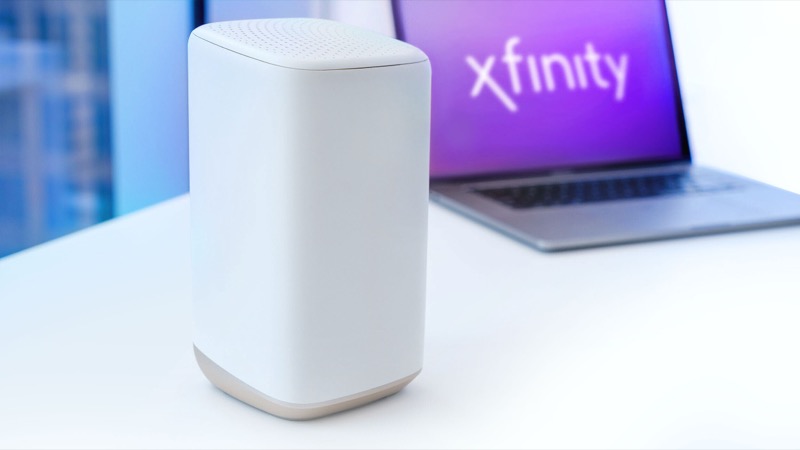
Xfinity’s official light table for gateways does not include an “online” light. It describes one set of status lights, and it lists the states for those lights: no light, white, red, blue for WPS, and a group of other colour combinations that mean connecting to Xfinity systems. A blinking light that you would call the online light on an older standalone modem is not described in that table.
That matters because “online” lights come from a different kind of equipment. Some standalone cable modems have separate Power, Downstream, Upstream and Online lights, and third-party guides describe what each one does. Those descriptions are model-specific, and Xfinity’s gateway table does not cover them. If you have a standalone modem, read its own manual or label, and treat any general explanation of an online light as a starting point, not a rule.
If your Xfinity gateway is blinking, the official reading is the connecting group: the gateway is trying to reach Xfinity systems, and the instruction is to wait about 15 minutes before contacting Xfinity if the problem continues. So the first question is whether you have a gateway or a separate modem, because the answer decides which light table applies.
#2 Steps to Troubleshoot
- Confirm the device type. Look at the label. An Xfinity gateway combines modem and Wi-Fi router in one unit, with a single set of status lights. A standalone modem has its own indicator lights and is usually connected to a separate router.
- For a gateway, match the light to the table. Use the official table. If the light is blinking orange, green or yellow, wait about 15 minutes for the connecting cycle to finish.
- For a standalone modem, read its manual. Find the model number on the label and read the light descriptions for that exact model. Do not apply another modem’s online light meaning to yours.
- Check the coax connection. Make sure the coax is tight at the wall and at the modem or gateway. A loose connection stops the device reaching the network.
- Check for an outage. Use the Xfinity app to see whether service is affected in your area. An outage keeps any online indicator from settling.
- Restart once if it has not settled. Unplug the power, wait one minute and plug it back in. Then give the device time to reconnect.
- Run the app’s network test. The Xfinity connectivity guidance recommends checking multiple devices first, then using the app’s troubleshoot tool. If the app finds a problem it cannot fix online, it offers a technician visit.
- Contact Xfinity if the light keeps blinking. Say whether it is a gateway or a standalone modem, the colour and pattern of the light, and what the app test showed.
#3 What If Scenarios
Q: My modem has separate Power, DS, US and Online lights. Is the Online light blinking a problem? The official gateway table does not cover that layout, so the answer depends on your model. Check its manual for what the online light means in each state. Third-party guides describe online lights as part of the connection setup, but the exact meaning varies, so use the manual for your model.
Q: Does a blinking online light mean my modem cannot register with Xfinity? Some third-party explanations say so, but the Xfinity sources we checked do not describe a registration failure by light. Treat it as a sign the modem is still connecting, check the coax, and contact Xfinity if the light does not settle or the internet stays down.
Q: The online light blinks but my internet works. Should I worry? Not necessarily. Check whether the internet is steady over time. If it drops, or the light keeps blinking for a long time, contact Xfinity. Intermittent service is worth reporting even if it works right now.
Q: Can a bad splitter or cable cause the light to keep blinking? A poor connection can stop the modem finding the network, which is the situation the connecting cycle exists for. Check any splitter and the coax connections, then report them to Xfinity if they are fine and the light still blinks.
Q: Do I need a new modem if the online light keeps blinking? Not until Xfinity has checked the connection and the account. Xfinity’s connectivity guidance says a device that is not compatible with the service should be replaced with an Xfinity gateway, so confirm your modem is supported before buying one.
#4 Related Articles
For the gateway light states, read the Xfinity gateway lights guide and the Xfinity router blinking orange guide. For a connection that stays down, read the green no-internet guide.