
#1 What This State Means
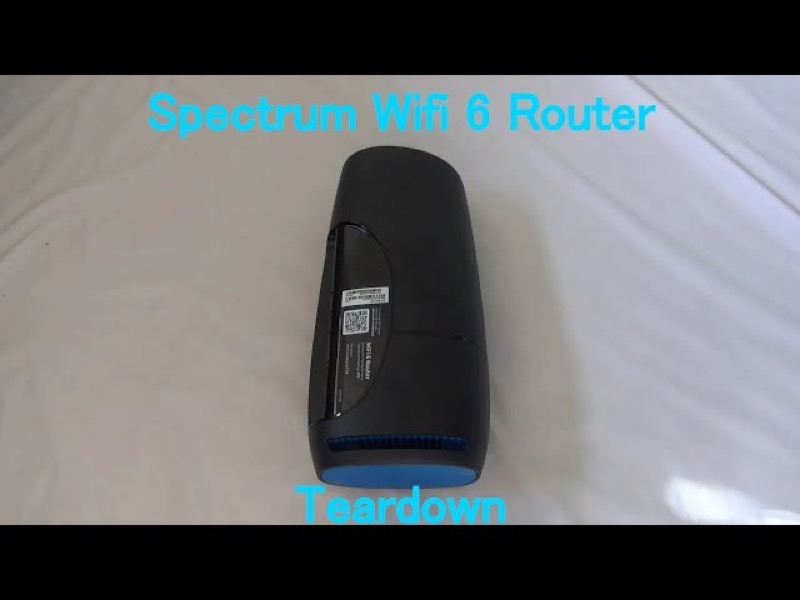
This is the overview for Spectrum’s lights. Spectrum equipment has different lights depending on the device, so the first step is to identify which device you have, then read the chart that matches it. The sources on this site cover two kinds of Spectrum equipment, and they do not cover the rest.
For the WiFi 6 router (the SAX1V1 family), Spectrum’s WiFi 6 manual, version 16, gives a status-light legend: blue or green for booting, connecting and connected, red pulsing for a connectivity issue, red and blue or green alternating for a firmware update, and red and white alternating for overheating. That legend is on the WiFi 6 router lights guide.
For modems and gateways, Spectrum’s public modem-light page defines the labels, including US, DS, Cable Link, Power, Online and Diag. That page is general and not tied to one model, so it is on the modem US and DS lights guide. Other Spectrum devices, such as the Wave 2 router, are not covered by a source on this site, so this overview cannot describe their lights.
#2 Which chart to use
| Device | What the sources cover | Where to look |
|---|---|---|
| WiFi 6 router (SAX1V1 family) | Status-light legend from the WiFi 6 manual | WiFi 6 router lights |
| Modem or gateway | Labels from Spectrum’s modem-light page, general | Modem US and DS lights |
| Wave 2 router (RAC2V1 family) | Not covered by a source on this site | Spectrum’s manual for your model |
| Other Spectrum equipment | Not covered by a source on this site | Spectrum’s manual for your model |
The table is the rule for this overview. If the device is not in the first two rows, do not apply either chart to it, because the sources do not show that it shares their lights.
#3 Steps to find your light
- Identify the device. Read the label on the device. A WiFi 6 router is a router with a single front status light. A modem is a separate box with the labels described above.
- Use the matching chart. For a WiFi 6 router, match the colour and pattern on the status-light guide. For a modem, match the labels on the modem-light guide.
- If the device is in neither chart, use Spectrum’s manual for that model. The sources here do not cover it.
- Check the cable and power first. For either device, make sure the power and the coax or network cable are firmly connected.
- Check for a Spectrum outage in your area. A network problem can change what any device shows.
- Contact Spectrum if the light does not match the chart. Give the model from the label, the light’s colour and pattern, and what you have already checked.
#4 What If Scenarios
Q: My router has a single front light. Which chart applies? If it is the WiFi 6 router (SAX1V1 family), use the WiFi 6 router lights guide. If the label shows a different model, the chart may not apply, so check Spectrum’s manual for that model.
Q: My device has several labelled lights. Which chart applies? That is a modem or gateway, so use the modem-light guide. Spectrum’s public page defines those labels, though it is not tied to one model.
Q: The light colour is one this overview does not list. What now? Check whether the device is the WiFi 6 router or a modem. If it is neither, the sources here do not cover its lights, so check Spectrum’s manual for your model and contact Spectrum if it is not clear.
Q: Does this overview cover amber lights? Not for the WiFi 6 router, which has no amber state in its manual. The Wave 2 router, where amber is mentioned on other pages, is not covered by a source here, so see the amber guide for what that page can and cannot say.
Q: Why does this overview not describe the Wave 2 router? Because no source checked for this site covers its lights. The WiFi 6 manual is for the WiFi 6 router, and the modem page is general and not tied to one model. Rather than guess a Wave 2 chart, this overview leaves it to Spectrum’s manual for that model, so you get an accurate answer from the source that covers it.
#5 Related Articles
For the WiFi 6 router legend, read the WiFi 6 router lights guide. For the modem labels, read the modem US and DS lights guide. For a router that is red and pulsing, read the Spectrum router blinking red guide.