
#1 What This State Means
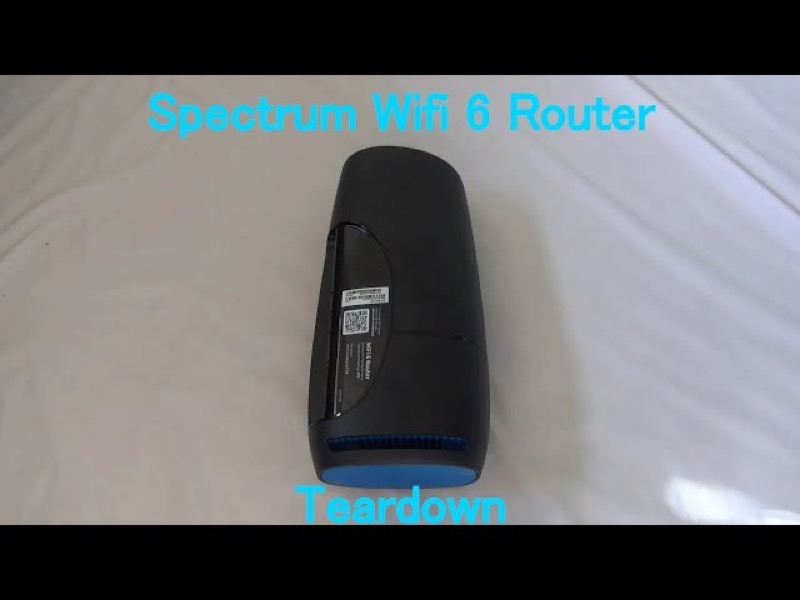
A blinking amber light is not in the Spectrum WiFi 6 router manual that this site checked. That manual’s status light is described as blue or green, with red and white alternating for overheating, and it does not list amber. So for a blinking amber or orange light, the sources cannot tell you what it means on that router.
The amber light is also associated, on this site’s device list, with the Spectrum Wave 2 router family. The manual we checked is for the WiFi 6 router, and it does not cover Wave 2 hardware. So the link between amber and the Wave 2 family is not confirmed by a source on this page. Do not assume the WiFi 6 legend applies to a Wave 2 router, and do not assume an amber light is a fault.
This means the honest first step is to confirm which router you have, then compare its light with Spectrum’s own material for that model. The steps below help you narrow the problem and collect the facts Spectrum will ask for.
#2 Confirm the device
- Read the model on the label. A WiFi 6 router shows its own family name in the manual. A Wave 2 router is a different model, so do not use the WiFi 6 legend for it.
- Check the light’s colour and pattern. Note whether it is amber or orange, whether it blinks or stays on, and whether any other light is on.
- Check whether the light matches the WiFi 6 legend. If your router is the WiFi 6 model, amber is not in that manual, so the legend cannot explain it.
- Use Spectrum’s support page for your model. If the model is not the WiFi 6 router, find the manual for your own model on Spectrum’s manuals page.
#3 Steps to Troubleshoot
- Check the cable from the modem. Make sure the cable into the router’s Internet port is firmly connected at both ends.
- Check the modem. Make sure it has power and its own lights look normal.
- Check for a Spectrum outage in your area. A network problem can change what the router shows, so check before you restart anything.
- Reboot once if nothing changes. For the WiFi 6 router, the manual gives a reboot as a press and hold of the side Reset button for 4 to 14 seconds, and it says your personalised settings are kept. Confirm the same step for your model in its manual before you use it.
- Contact Spectrum with the model and the light. Give the label model, the amber colour and pattern, how long it has shown, and what you have already checked.
#4 What If Scenarios
Q: The light is blinking amber. Is the router failing? The sources do not say. The WiFi 6 manual does not list amber, and this page cannot confirm what amber means on a Wave 2 router. Check the cable and modem, look for an outage, and contact Spectrum with the model.
Q: Is amber the same as the red light? Not as far as the sources show. Red has its own documented states on the WiFi 6 router, and amber is not one of them. Do not treat the red guidance as the amber answer.
Q: Can I use the WiFi 6 legend for my amber light? Only if your router is the WiFi 6 model. Confirm the label first. For a different model, the WiFi 6 legend does not apply.
Q: Will a factory reset clear a blinking amber light? The sources do not present a factory reset as the fix for an amber light. A factory reset removes personalised settings, so use it only if Spectrum support asks you to.
Q: My Spectrum device is a modem, not a router. Does this page apply? No. This page is about a router’s amber light, so use the page for your modem.
Q: What should I tell Spectrum about an amber light? Give the exact model on the label, the colour as you see it, whether it blinks or stays on, how long it has shown, whether the internet works, and which checks you have made. The sources do not give Spectrum’s meaning for amber, so the most useful thing you can give support is a precise description and the model. Ask them to confirm what the light means on your router before you replace any equipment.
#5 Related Articles
For the WiFi 6 router legend, read the Spectrum WiFi 6 router lights guide. For the red pulse on the WiFi 6 router, read the Spectrum router blinking red guide. For the full overview, read the Spectrum router lights guide.