
#1 What This State Means
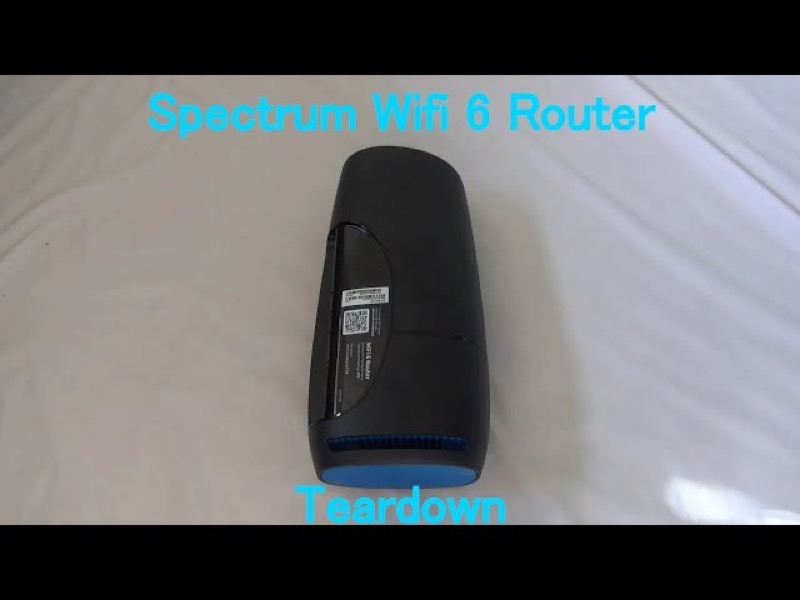
On the Spectrum WiFi 6 router, the status light is blue or green, and its pattern tells you what the router is doing. A blue or green pulsing light means the router is connecting to the internet. A blue or green flashing light means it is booting up. A blue or green solid light means it is connected. So a blinking blue light is not a single fault: it is the router working through its start-up or connection steps, and it should settle.
Spectrum’s manual describes the colours as “blue or green” rather than naming a separate blue state, so the colour alone does not tell you the state. Read the pattern. A pulsing light is in progress, and a flashing light is booting. If the light stays pulsing, or stops pulsing and goes red, the router has a different problem, and the checks change.
This page covers the Spectrum WiFi 6 router family only: the the SAX1V1 family. The manual does not describe a blue light on Spectrum’s other routers or on its modems, so do not apply this page to them.
#2 Read the pattern
| What you see | What Spectrum’s manual says | What it means for you |
|---|---|---|
| Blue or green, flashing | Device is booting up | Wait for it to finish |
| Blue or green, pulsing | Connecting to the internet | Give it time; it should settle |
| Blue or green, solid | Connected to the internet | Healthy; check the device if it still cannot get online |
| Red, pulsing | Connectivity issue | Not a blue state; check the connection |
The table shows that a blue pulse is a normal step, while a red pulse is a fault. Keep the colour and the pattern together when you judge the router.
#3 Steps to Troubleshoot
- Decide whether it is pulsing or flashing. Flashing means booting, and pulsing means connecting. Both are normal states that should end.
- Wait the full start-up or connection time. Do not restart the router during a pulse or a flash, because that begins the process again.
- If the light turns solid, test the connection. Solid blue or green means the router is connected, so check the device that cannot get online.
- If the light keeps pulsing for a long time, check the connection. Make sure the cable from the modem to the router’s Internet port is secure. Check the modem’s own lights and any outage in your area.
- If the light turns red and pulses, treat it as a connectivity issue. The manual uses the same red pulse for a connectivity issue, so check the cables and the modem before anything else.
- Reboot once if the blue state does not settle. Press and hold the Reset button on the side for 4 to 14 seconds. Your personalised settings are kept.
- Contact Spectrum if the light stays pulsing or red. Give the model, the colour and pattern, how long it has shown, and what you have already checked.
#4 What If Scenarios
Q: The light is blinking blue and my devices cannot get online. What now? The router is probably still connecting, so wait for the pulse to stop and the light to turn solid. If it turns solid and devices still cannot connect, check the devices and their Wi-Fi settings.
Q: The light is solid blue but the internet is down. Is the router broken? Not on the manual’s reading. Solid blue or green means the router is connected to the internet. Check the modem, the cable and any outage in your area before you replace anything.
Q: The light stopped pulsing and turned red. Is that the same as blue? No. A red pulse is a connectivity issue, and the manual lists it separately from the blue or green states. Check the cables and the modem, then contact Spectrum if the red pulse continues.
Q: Will restarting the router fix a pulsing blue light? Not while it is pulsing. Wait until the router finishes connecting. If the pulse continues for a long time, reboot once. Spectrum says a reboot keeps your personalised settings.
Q: My Spectrum device is a modem, not the WiFi 6 router. Does this apply? No. The manual covers the WiFi 6 router family, not Spectrum’s modems. Use the page for your device.
#5 Related Articles
For the full WiFi 6 router legend, read the Spectrum WiFi 6 router lights guide. For a blue light after a power cut, read the Spectrum blue light after a power outage guide. For the red states, read the Spectrum router blinking red guide.