
#1 What This State Means
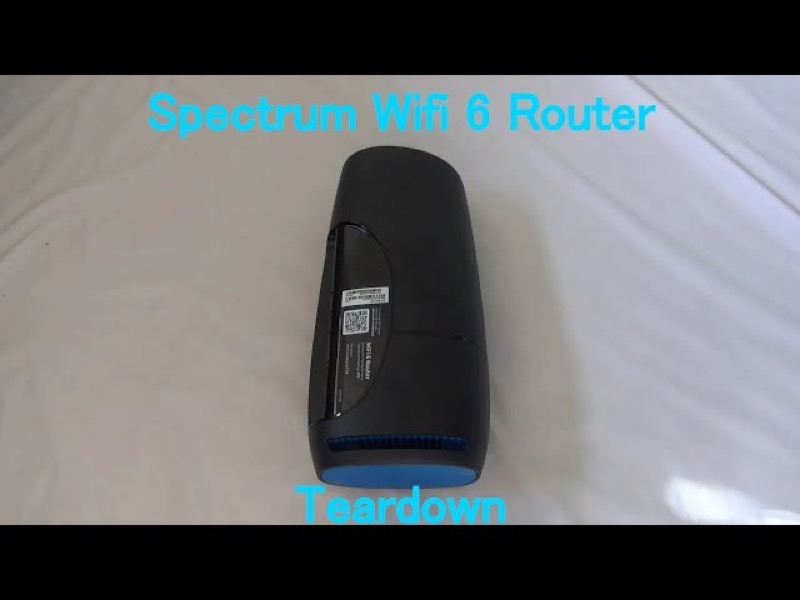
If your Spectrum WiFi 6 router shows blue, the first thing to know is that blue is one of the router’s normal working colours. Spectrum’s manual describes the status light as blue or green, and the pattern tells you the state. A flashing light means the router is booting up, a pulsing light means it is connecting to the internet, and a solid light means it is connected. So a blue light is only a problem when it stops changing or when the router turns red.
That means “fixing” a blue light usually means giving the router the time and the connection it needs, not changing a setting. Spectrum’s manual does not describe a fix for a blue light as such. The steps below follow the manual’s states: let a start-up or a connection finish, check the cable and modem if it does not, and reboot once only if the state does not settle.
This page covers the Spectrum WiFi 6 router family only, the SAX1V1 family. The manual’s status-light table is for that family. It does not describe the blue light on Spectrum’s modems or other routers.
#2 Fix by state
| What the blue light does | What Spectrum’s manual says | The fix |
|---|---|---|
| Flashing | Device is booting up | Wait for start-up to finish. Do not unplug it |
| Pulsing | Connecting to the internet | Give it time. Check the cable and modem if it keeps pulsing |
| Solid | Connected to the internet | Nothing to fix on the router. Check the devices |
| Blue or green alternating with red | Firmware update, or overheating on a red and white pattern | Wait for the update, or move the router if it is overheating |
Most blue fixes are about timing. The router is doing what the manual says it should do, and the fix is to let it finish. Only the pulse that will not settle, and the red patterns, need you to act.
#3 Steps to fix a blue light that will not settle
- Wait for the state to finish. A flash or a pulse should end. Watch it for a few minutes before you act.
- Check the cable from the modem. Make sure the cable into the router’s Internet port is firmly connected at both ends.
- Check the modem. Make sure it has power and its own lights look normal. The router cannot connect through a modem that is not connected.
- Check for a Spectrum outage in your area. A pulse that keeps going can come from the network, so check before you restart.
- Reboot once if the pulse continues. Press and hold the Reset button on the side for 4 to 14 seconds. The manual says your personalised settings are kept.
- Check the devices once the light is solid. A solid blue light means the router is connected, so the fix for a device that cannot get online is on the device.
- Contact Spectrum if the blue pulse does not settle. Give the model, the pattern, how long it has shown, and what you have already checked.
#4 What If Scenarios
Q: Do I need to reset the router to fix a blue light? No. The manual describes a blue light as a working state, and a reset is not the fix for it. A factory reset removes your personalised settings, so use it only if Spectrum support asks you to.
Q: The blue light keeps flashing. What should I do? Flashing means the router is booting up. Wait for it to finish, and do not unplug it. If it does not finish for a long time, check the power and the cable, then contact Spectrum.
Q: The blue light is solid and my devices still cannot get online. What now? A solid blue light means the router is connected, so the fix is on the device. Reconnect the device to the network, and check the device’s Wi-Fi setting.
Q: The blue light turned red. Is it still a fix for the blue light? No. A red pulse is a connectivity issue in the manual, so use the red guidance and check the cable and modem.
Q: My Spectrum device is a modem, not the WiFi 6 router. Does this page apply? No. The manual covers the WiFi 6 router family only, so use the page for your device.
#5 Related Articles
For the full WiFi 6 router legend, read the Spectrum WiFi 6 router lights guide. For the blue state on its own, read the Spectrum router blinking blue guide. For a red pulse, read the Spectrum router blinking red guide.