
#1 What This State Means
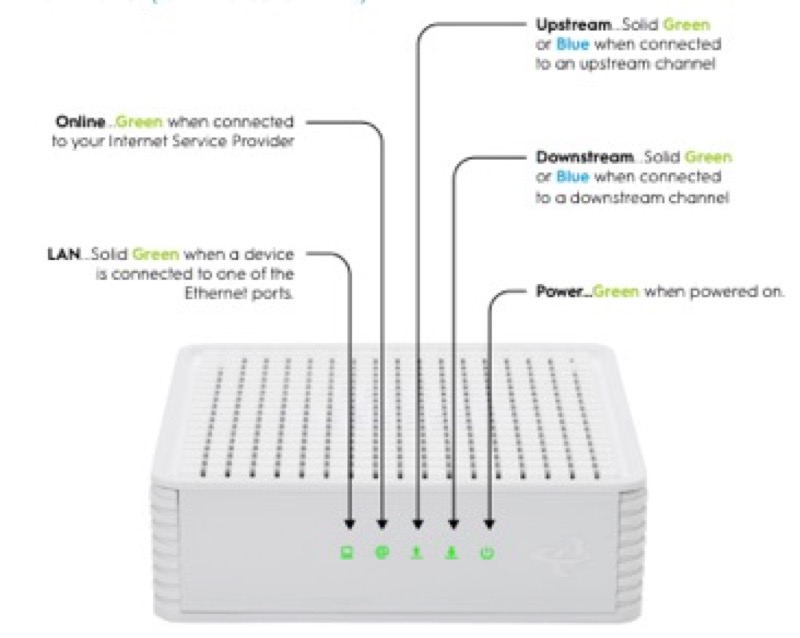
Reading a router’s LED codes means matching what the light does to the table for that router’s brand. The sources on this site give tables for a small set of devices, and each table uses its own colours and patterns. So this page does not give a universal code. It gives the method, and it points you to the table that applies to your device.
The method has three parts: the colour, the pattern and the device. The colour is the light’s hue, such as white, blue, green, amber or red. The pattern is whether it is solid, flashing, pulsing or blinking slowly or fast. The device is the brand and model on the label. The same colour and pattern can mean a boot step on one device and a fault on another, so you need all three before you can read the code.
For the devices covered by sources here, the tables are: Spectrum’s WiFi 6 router (S02) for the blue and green working states and the red patterns; Cox’s XER10 (S31), CGM4141 (S32) and CGM4331 (S30) for their own states; and Verizon’s CR1000A (S08 and S09) for the Router Status light. Where a device is not covered, the honest answer is that the sources do not give its code.
#2 Reading a code in three steps
| Step | What to note | Where to look |
|---|---|---|
| Device | The brand and model on the label | The label on the router |
| Colour | White, blue, green, amber or red | The light itself |
| Pattern | Solid, flashing, pulsing or slow or fast blinking | The light itself |
Once you have all three, use the table for that brand. The tables are the reference, and this page does not repeat them.
#3 Steps to read a code
- Read the model on the label. Note the brand and model exactly.
- Note the colour. Write down which colour the light shows.
- Note the pattern. Solid, flashing, pulsing or blinking, and whether it is slow or fast where the table gives that difference.
- Find the table for your device. Use the device’s table, and do not use another brand’s table for the same colour.
- Take the table’s action. Where the table gives an action, follow it. Where it gives none, wait for the state to finish or contact the provider.
- If the device is not covered, contact the provider. The sources on this site do not give its code, so ask for its light table.
#4 What If Scenarios
Q: I cannot find my router’s brand in these pages. What do I do? Find the light table from the brand’s own support pages. The sources on this site do not cover every brand, so an uncovered device has no code here.
Q: The same colour means different things on two routers. Which is right? Both can be right, because each brand’s table is its own reference. Read the colour with the pattern and the device, then use the table for the device you have.
Q: The light has a pattern I cannot match to the table. What now? Write down the colour, the pattern and how long it has shown it, then contact the provider. Do not guess a meaning the table does not give.
Q: Does a code mean the router is broken? Not always. Several codes are boot or connecting states that finish on their own. Red is the fault colour on several devices, so check the connection for a red state.
Q: Where are the Cox and Verizon codes? Cox’s codes are in its XER10, CGM4141 and CGM4331 tables, and Verizon’s are in its CR1000A chart. Use the page for the device you have.
Q: Why does the code change while I watch it? Several codes are steps in a sequence, not single states. Spectrum’s WiFi 6 goes from flashing, to pulsing, to solid while it boots and connects, and Cox’s XER10 goes from solid amber to flashing amber to solid white. So a change is often the device moving on, and the table tells you which step each one is. Note the order if you need to describe it to a provider.
Q: Does a code have a time limit? Only some do, and only where the source gives one. Verizon’s CR1000A guide gives up to two minutes for slow blinking blue during WPS pairing, and NETGEAR’s Orbi article gives three minutes for a satellite’s solid blue or amber backhaul reading. Spectrum’s manual and Cox’s tables give no time limit for their states, so do not assume one.
#5 Related Articles
For the colours by brand, read what router light colours mean. For the Spectrum WiFi 6 codes, read the Spectrum WiFi 6 router lights guide. For the Cox device tables, read the Cox gateway lights by device guide.