
#1 What This State Means
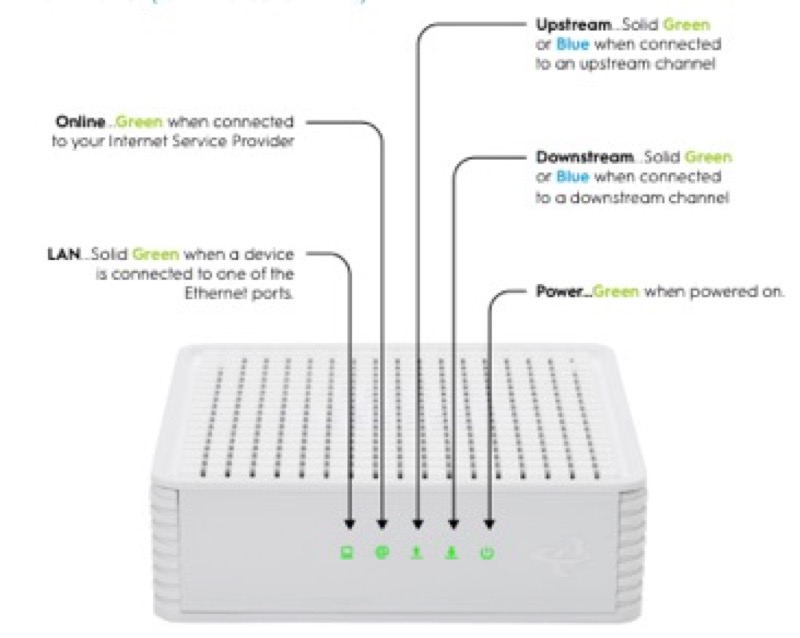
AT&T’s official Arris BGW210-700 user guide describes the gateway’s two main status lights in plain terms. The Power light should be green when the gateway has power, and the guide says to try another outlet if it is not. The Service light shows the connection state. After setup, the Service light should be solid green, and the guide says that if it is red or off after five minutes, you should power the gateway down.
The guide also explains two colours you may see during start-up. An amber Power light is described as a normal part of the power-up sequence, so do not treat it as a fault. A Service light that flashes and then turns solid green is the expected end of setup. If the Service light is still blinking after five minutes, the guide says to look for further help rather than to keep waiting.
This page covers the BGW210-700 only. The guide does not describe the Broadband, Phone or WPS lights in the copy we checked, and it says that light colours may vary with setup. So do not read other colours into the gateway from another AT&T model’s legend.
#2 Check the Power and Service lights
- Check the Power light. It should be green. If it is not, try another electrical outlet.
- Expect amber during power-up. An amber Power light during start-up is normal, according to AT&T’s guide.
- Check the Service light after power-up. It should flash during setup and then turn solid green. AT&T’s guide says the power-up can take up to five minutes.
- If the Service light is red or off after five minutes, power down. AT&T’s guide says to hold the red Reset button for 10 seconds to power the gateway down, then start again.
- If the Service light still blinks after five minutes, get more help. The guide says to see its “Need more help?” section and contact AT&T.
#3 Steps to Troubleshoot
- Keep the gateway powered during start-up. AT&T’s guide warns not to disconnect the power cord or unplug any cables while the gateway powers up, because that can permanently damage it and delay activation.
- Check the cables. AT&T’s guide says cables usually make an audible click when secure. Check the coax or phone cable at both ends.
- Check the Power light and outlet. If the Power light is not green, try another outlet first.
- Check the phone port if you have no dial tone. AT&T’s guide says the phone cable must be in the Phone Line port on the gateway.
- Power down only if the Service light stays red or off. Hold the red Reset button as the guide describes, then power up again.
- Check for an outage. Use Smart Home Manager or myAT&T on a mobile device to look for a service problem in your area.
- Contact AT&T for a damaged power supply. The guide says a damaged power supply or cord must be replaced with an authorised AT&T replacement, so do not use a generic adapter.
#4 What If Scenarios
Q: The Power light is amber. Is the gateway faulty? No. AT&T’s guide describes amber as a normal part of the power-up sequence. Wait for start-up to finish, then check whether the Power light is green and the Service light turns solid green.
Q: The Service light is blinking after five minutes. What do I do? The guide says to see its “Need more help?” section and contact AT&T. Give the model, the Power and Service light states, and what you have already checked.
Q: The Service light is red after five minutes. Should I power down? Yes, the guide says so. Hold the red Reset button to power the gateway down, then power it up again and watch the Service light. If it stays red or off, contact AT&T.
Q: I have no dial tone. Is the gateway broken? Not necessarily. AT&T’s guide says the phone cable must be in the Phone Line port on the gateway. Check that first.
Q: The power cord is frayed. Can I use a replacement from a store? No. AT&T’s guide says a damaged power supply or cord must be replaced through AT&T customer service, to get an authorised replacement.
#5 Related Articles
For the restart and reset difference, read restart or factory reset. For the AT&T gateways that share these checks, read the AT&T router blinking red guide and the AT&T router power light blinking guide. For an outage, read how to check for an ISP outage.