
#1 What This State Means
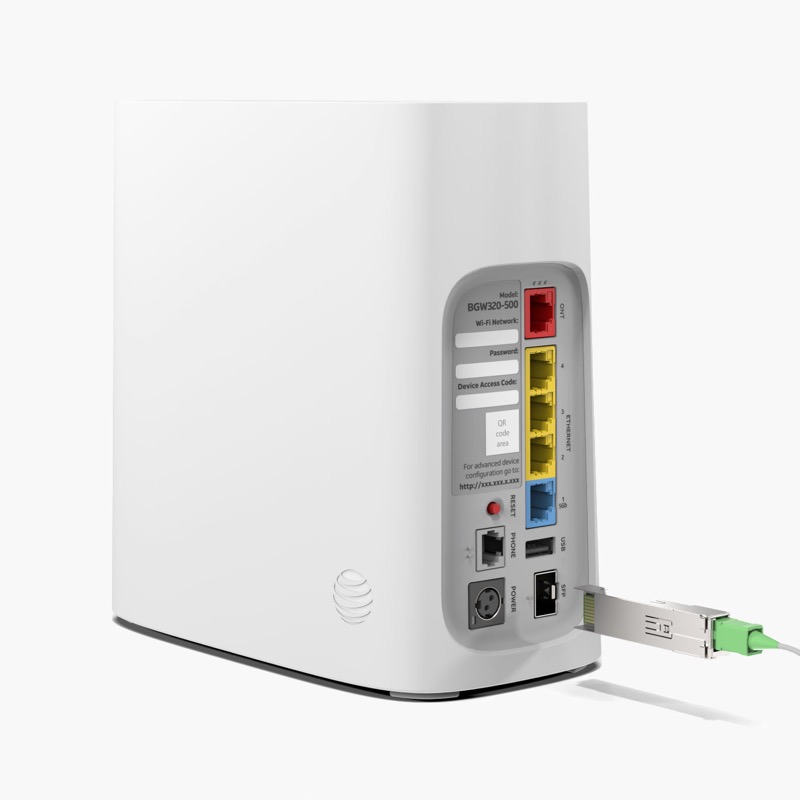
The AT&T BGW320 has three light groups that matter: the front Service light, the front WPS light, and two lights on the back, one for Ethernet and one for power. AT&T’s own guide, “What Do the Lights Mean?”, gives a separate meaning for each light and each pattern. Read the Service light first. Its colour and speed tell you whether the gateway is starting, connected, or has a fault. The WPS light only applies when you are pairing a Wi-Fi device.
Two points matter most. First, the BGW320 can show solid red for two different reasons: the gateway is overheating in its location, or it has a hardware fault. AT&T says a hardware fault needs replacement if a reboot does not fix it. Second, a blinking red light can mean a network service issue or a missing broadband connection, and AT&T’s guide gives a different first step for each. The chart below follows AT&T’s wording.
These meanings come from AT&T’s guide for the BGW320 family. They do not apply to other AT&T gateways, such as the BGW210 or the BGW620, which have their own patterns.
#2 Service light
| Service light | What AT&T says it means |
|---|---|
| Solid white | Online. Connect a device. |
| Blinking white, fast | Starting up. Wait. |
| Blinking white, slow | Powering up. |
| Blinking green, fast | Connected to the network and ready for activation. Only during first installation. |
| Solid red, WPS light off | Overheating. Move the gateway to a flat surface, away from carpet, with space around it for air. |
| Solid red, WPS light also solid red | Hardware issue. If a reboot does not fix it, the gateway needs replacement. |
| Blinking red, fast | Network service issue, which may need AT&T. Check for an outage, then reboot. |
| Blinking red, slow | No broadband connection. Check for a loose, disconnected or damaged cable. |
| Solid amber | Powered on and starting. Wait until it turns solid white. |
| Blinking amber, slow | Receiving an update. Wait until it turns solid white. |
| Blinking yellow, fast | Phone registration failed, or a VoIP line has a problem. |
| Solid yellow | A VoIP line is registered, or a call is in progress. |
#3 WPS light
| WPS light | What AT&T says it means |
|---|---|
| Off | Wi-Fi device pairing is off. Press the button to start pairing. |
| Blinking red, fast, with Service solid white | Multiple Wi-Fi devices are trying to connect. Wait before trying again. |
| Solid red, with Service solid white | Pairing with WPS failed. Wait until the light changes, then press the button again. |
| Blinking green, fast | Factory reset in progress. Wait while it starts back up. |
| Blinking green, slow, with Service solid white | The WPS button was pressed. Act on the Wi-Fi device you are connecting. |
Ethernet and power lights on the back are simpler. A solid green Ethernet light means a link to a connected device. Off means the device is not connected properly or is not powered on. A solid green power light means power is on. If the power light is green but the front Service light is off, AT&T says the gateway needs replacing.
#4 Steps to Troubleshoot
- Read the Service light first. Note its colour and speed, then use the table above.
- For solid red, check the WPS light. If WPS is off, the gateway is overheating, so move it. If WPS is also solid red, reboot once and then consider replacement.
- For blinking red fast, check for an outage. Use Smart Home Manager or myAT&T on a mobile device to check for a service outage in your area, then reboot.
- For blinking red slow, check the cable. Look for a loose, disconnected or damaged cable before anything else.
- For a reset, follow AT&T support. AT&T’s guide on the reset button mentions a hold, but AT&T’s documents do not agree on the duration. Use AT&T’s current support instructions rather than a number from this page.
- Contact AT&T if the light stays wrong. Give the model, the Service and WPS light states, and what you have checked.
#5 What If Scenarios
Q: The Service light is solid white but the internet is down. What now? Solid white means the gateway is online, so the fault is more likely a device or Wi-Fi problem. Check the connected devices, and reboot the gateway once. If the internet stays down, check for an outage.
Q: The Service light is blinking green fast. Is that a problem? AT&T describes it as the gateway being connected and ready for activation, which only happens during first installation. If you have already set the gateway up and it still shows this light, contact AT&T.
Q: Why does the gateway still show the power light green when the Service light is off? AT&T says that combination means the gateway needs replacing. Contact AT&T rather than resetting it.
Q: What does solid amber mean on a BGW320? The gateway is powered on and starting up. Wait until the Service light turns solid white. If it stays amber for a long time, contact AT&T.
Q: Does the WPS button do anything other than pairing? The WPS light shows pairing state. Pressing it starts pairing, and AT&T’s guide describes the light for each pairing result. Do not treat the WPS light as a fault indicator on its own.
#6 Related Articles
For the blinking red state, read the AT&T BGW320 blinking red guide. For the restart and reset difference, read restart or factory reset. For an outage, read how to check for an ISP outage.