
#1 What This State Means
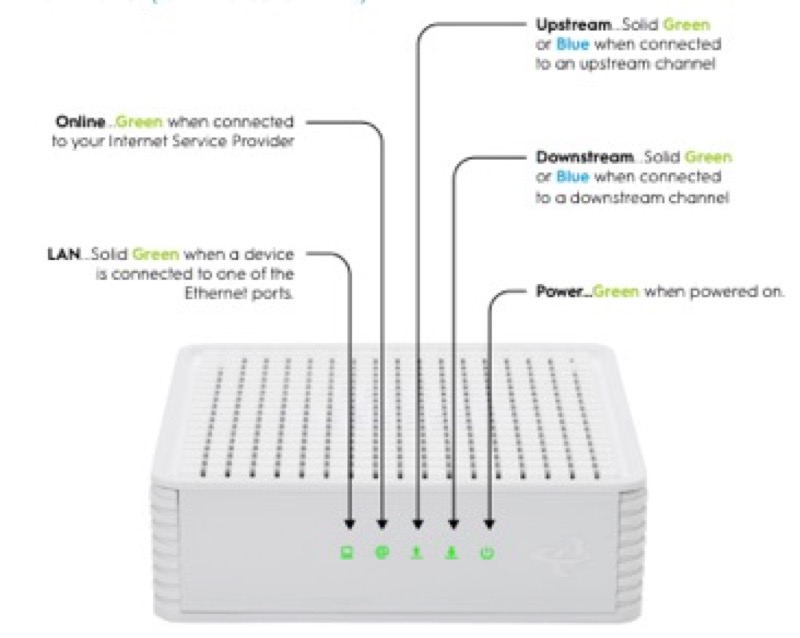
A restart and a factory reset both make the light change, but they change it in different ways, and the sources document this only for some brands. The general rule is that a restart shows the normal start-up, while a factory reset shows a reset state before the start-up begins. Read the light for the state it shows, and do not assume that a reset light looks the same as a restart light.
On Cox’s XER10 Panoramic router (S31), the reset state is distinct. Green circles mean a factory reset is in process, and after the reboot the normal boot-up sequence follows. A normal restart, by contrast, goes straight to solid amber for the boot. On Spectrum’s WiFi 6 router (S02), the lights follow the router’s start-up sequence, and the manual’s reset hold is 4 to 14 seconds for a reboot and 15 seconds or more for a factory reset. The manual says a reboot keeps your personalised settings and a factory reset removes them.
So the light tells you what the device is doing, and the duration of the hold tells you which action you took. Use the light to confirm the state, and the settings to confirm what was kept.
#2 Restart and reset lights by brand
| Brand and device | Restart | Factory reset |
|---|---|---|
| Cox XER10 Panoramic router | Solid amber for boot, then the normal sequence | Green circles while the reset runs, then the normal boot sequence |
| Spectrum WiFi 6 router | Flashing blue or green during boot, then pulsing, then solid | Not stated as a separate light; the manual says a factory reset removes personalised settings |
| AT&T gateway | Not stated on the light | Not published; the sources do not agree on the hold |
| Verizon CR1000A | Fast blinking white for a system restart | Not stated on the light |
The table shows where the sources give a light for the reset. Where a brand’s source gives none, this page does not infer one.
#3 Steps to read the light after a restart or reset
- Note what you did. Write down whether you restarted or reset the device, and for how long you held the button.
- Read the light against the brand’s table. Use the restart row for a restart, and the reset row for a reset.
- If the XER10 shows green circles, let the reset run. Cox’s table says it is a factory reset in process, followed by the normal boot-up sequence, so do not interrupt it.
- If the device starts its normal boot, wait for solid white or the router’s solid state. The normal boot ends at online.
- If you reset the device by mistake, check your settings. The Spectrum manual says a factory reset removes personalised settings, so expect to set up the Wi-Fi name and password again.
- Contact the provider if the light does not match the table. Give the model, the light and what you did.
#4 What If Scenarios
Q: After I restarted my router the light went amber. Did the restart fail? No, if it is a Cox XER10 or CGM4141. Solid amber is the boot state for both. Let the boot finish, and the light should reach solid white.
Q: The light shows green circles after I held the button. Is that a factory reset? On the Cox XER10, green circles mean a factory reset is in process. Let it run and let the normal boot follow.
Q: After a reset my Wi-Fi name and password changed. Is that normal? Yes, for a factory reset. Spectrum’s manual says a factory reset removes personalised settings, and Cox’s Panoramic page says the name and password revert to the default after a factory reset.
Q: The restart and the reset looked the same on my Verizon router. Why? Verizon’s CR1000A guide gives fast blinking white for a system restart, and it does not give a light for a factory reset, so the light may not tell you which one you did. Check your settings, and contact Verizon if you are unsure.
Q: How long should I hold the button? Spectrum’s manual gives 4 to 14 seconds for a reboot and 15 seconds or more for a factory reset. The AT&T and Verizon holds are not published on this site, because the sources do not agree, so check the provider’s current instructions.
#5 Related Articles
For the restart and reset difference, read restart or factory reset. For the Cox XER10 lights, read the Cox Panoramic WiFi router lights guide. For the Spectrum WiFi 6 lights, read the Spectrum WiFi 6 router lights guide.